Usage
Preface
This plugin registers JupyterLab commands when supported formatters are detected.
Here is a non-exhaustive list of possibilities:
jupyterlab_code_formatter:blackjupyterlab_code_formatter:isortjupyterlab_code_formatter:yapfjupyterlab_code_formatter:formatrjupyterlab_code_formatter:styler
These commands invoke the specified code formatter in the current focused cell.
To find out what formatters are available, you can query http://localhost:8888/jupyterlab_code_formatter/formatters (you might need to replace the port and address), the keys of formatter are shown there.
In addition to the above commands, this plugin also adds two non-formatter-specific commands:
jupyterlab_code_formatter:formatjupyterlab_code_formatter:format_all
These commands invoke the configured default code formatters, to configure the default code formatters see here.
Invoke Default Code Formatter(s)
Here are some examples showing how to invoke the default code formatter(s) via comand palette.
For Focused Cell(s)
Example using the context menu:

You can also achieve this by invoking jupyterlab_code_formatter:format.
For The Entire Document
Example using the button on the toolbar:
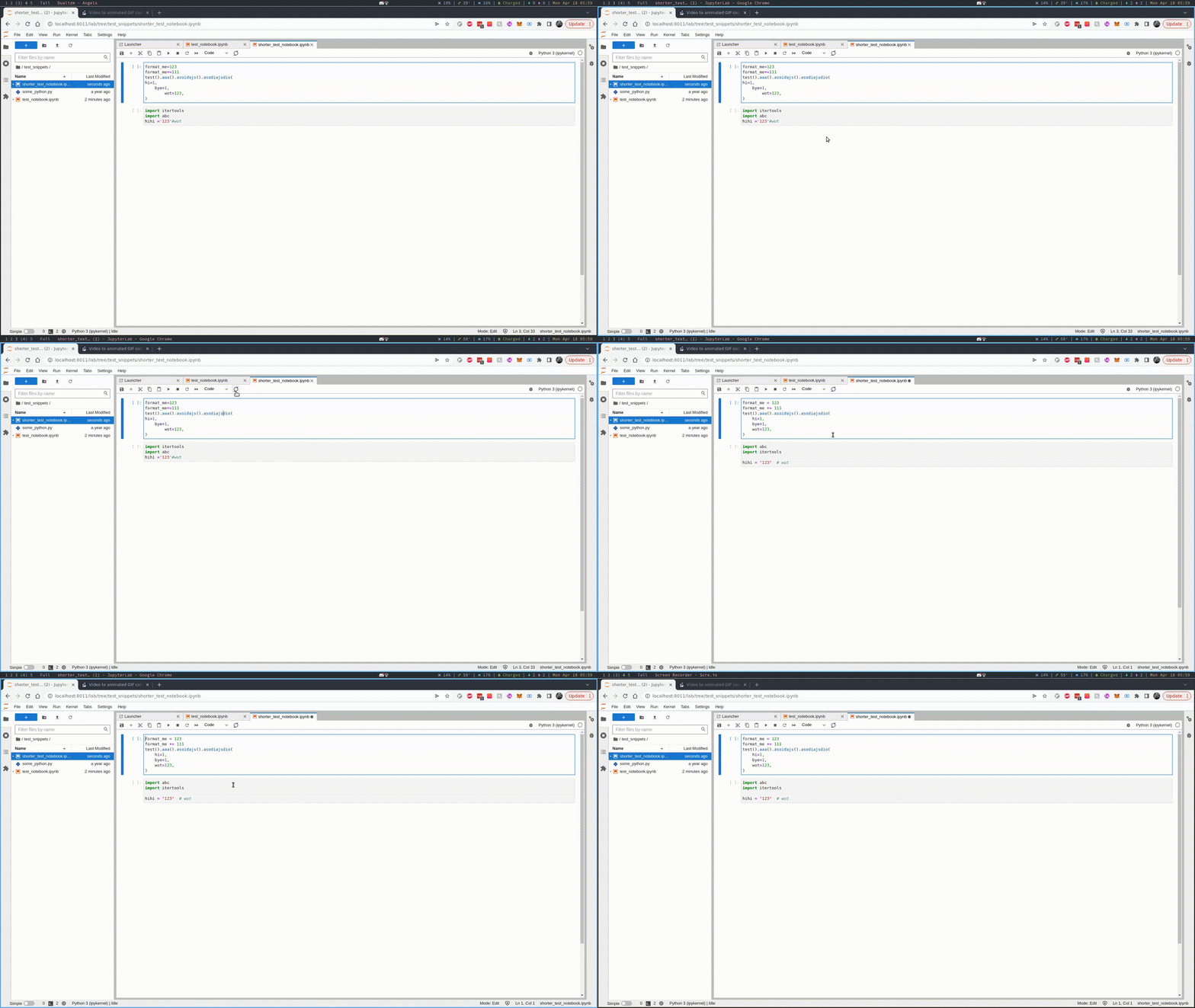
You can also achieve this by invoking jupyterlab_code_formatter:format_all.
Invoke Specific Code Formatter
Example using the command palette or menu bar:
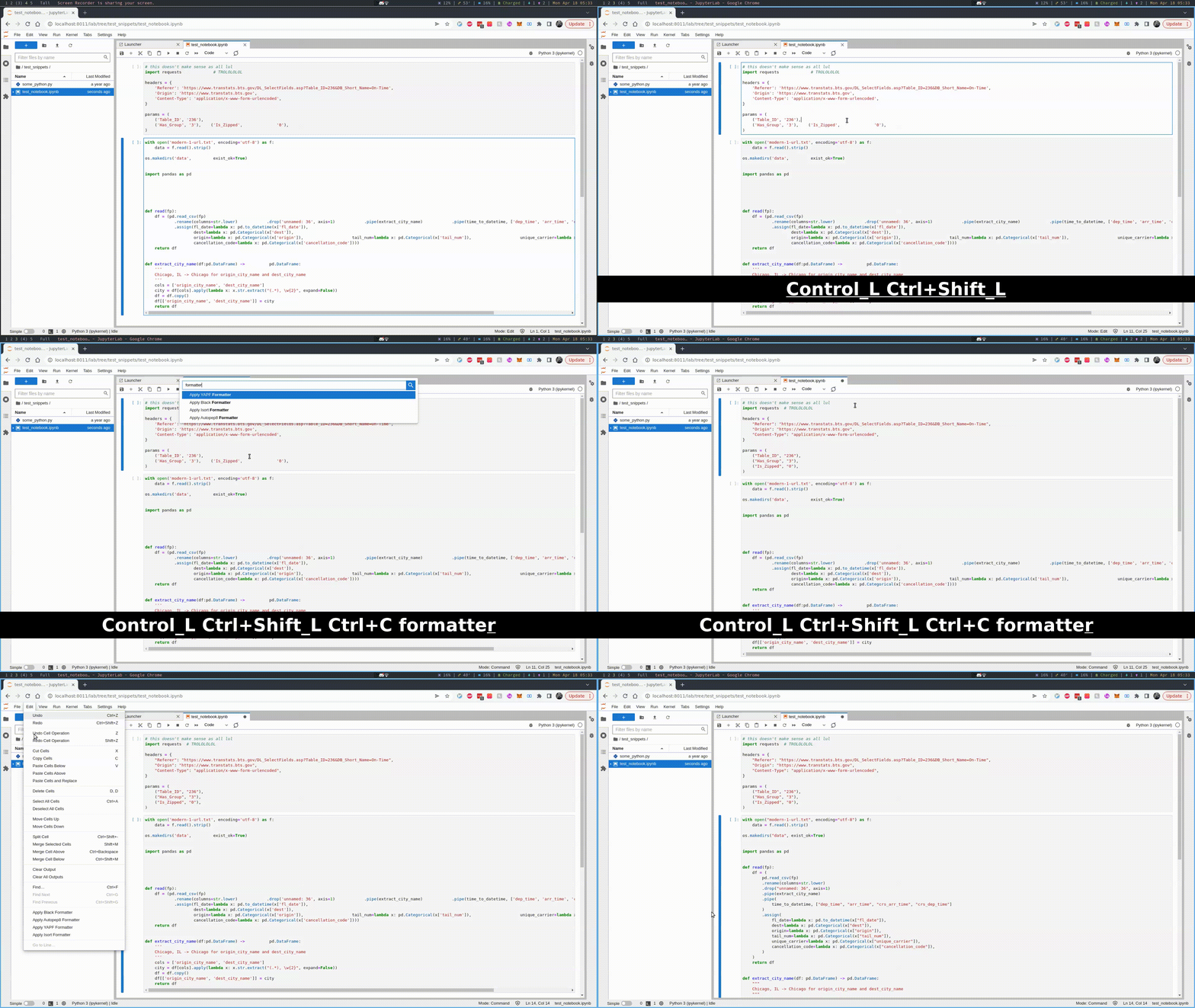
You can also achieve this by invoking jupyterlab_code_formatter:black for example, see possiblities in the preface.
Invoke Commands Programmatically
All the commands described above can be invoked from another extension (or from the browser console) via the JupyterLab command registry. They accept two optional arguments:
path- the document to format; it has to be open in JupyterLab. When not given, the active document is used.showDialogs- whether errors should be reported to the user in a dialog. When not given, thesuppressFormatterErrorsandsuppressFormatterErrorsIFFAutoFormatOnSavesettings decide.
const result = await app.commands.execute(
  'jupyterlab_code_formatter:format_all',
  {
    path: 'notebooks/analysis.ipynb',
    showDialogs: false
  }
);
Commands reject when the requested document is not open, when there is no document to format, when no formatter is configured for the document language, or when the formatter could not be reached. Otherwise they resolve with a summary of what was done:
{
  // path of the formatted document
  path: 'notebooks/analysis.ipynb',
  // formatters which were applied, in the order of application
  formatters: ['isort', 'black'],
  // number of code cells passed to the formatters (1 for files)
  considered: 3,
  // number of code cells which changed
  changed: 2,
  // errors raised by the formatters for individual cells
  errors: []
}
Errors raised by a formatter for a specific cell (for example a syntax error) do
not reject the command; they are collected in errors, each entry telling which
formatter failed on which cell:
{ index: 1, formatter: 'black', error: "Cannot parse: 1:6: x ==== 1" }
Such errors are additionally shown to the user in a dialog, which the extension
waits for the user to dismiss. Pass showDialogs: false to skip the dialogs
altogether if you want to handle the errors yourself - both those collected in
errors and the one which the command rejects with.